 Seed Up Gate
For schools and institutions
Seed Up Gate can be used in a classroom or a computer lab without an internet connection. A single license file opens the game on every computer, with no codes. Each student provides you with the Learning Report prepared by the game.
Application process
- ApplicationThe name of your institution and the number of computers are stated.
- Installation package and institution licenseThe installation package, the institution license file, and the setup guide are sent to you.
- Trial on one computerThe game is first tried on one computer. If no problem is found, it is installed on the others.
The game guides the player at every step, so your students do not need prior knowledge of entrepreneurship. It is intended for high school and university students, and for anyone thinking about starting their first business.
What the game teaches
Each part of the game corresponds to a real step in starting a business. The source of every amount, time period, and rate is stated at the bottom of the game's information cards.
| Part of the game | What it teaches |
|---|---|
| Character and profile | Real eligibility rules that depend on age and education: the young entrepreneur income exemption for founders under 29, and extra support tied to age or to women's entrepreneurship. |
| Opening presentation | A business idea starts with a problem, before any product. A technology park (teknokent in Turkish) is a zone set up under Law No. 4691 (Technology Development Zones) for software and R&D companies, which is why it requires software or R&D. |
| Canvas and pre-assessment report (karne) | Thinking through a business model in nine blocks. Receiving feedback with stated reasons. The difference between a pre-assessment and the official committee decision. |
| Path cards | The routes outside the technology park and their conditions: public support programs for new businesses, a home office with a sole proprietorship, and the trades and shops route. |
| Settling in and the street survey | Verifying demand in the field. Rent, deposit, and fixed costs. |
| Certified accountant (mali müşavir) | Business types, liability, and minimum capital. Signing electronically or in person. |
| Official company formation | The application, registration with the trade registry, electronic notification, the tax office site visit, and the bank account. For a sole proprietorship, the start-of-business notification. |
| First sale | The right sales document: an e-Archive invoice (Turkey's electronic invoice for sales to customers outside the e-invoice system) or a self-employment receipt. The VAT exemption for software developed in a technology park. |
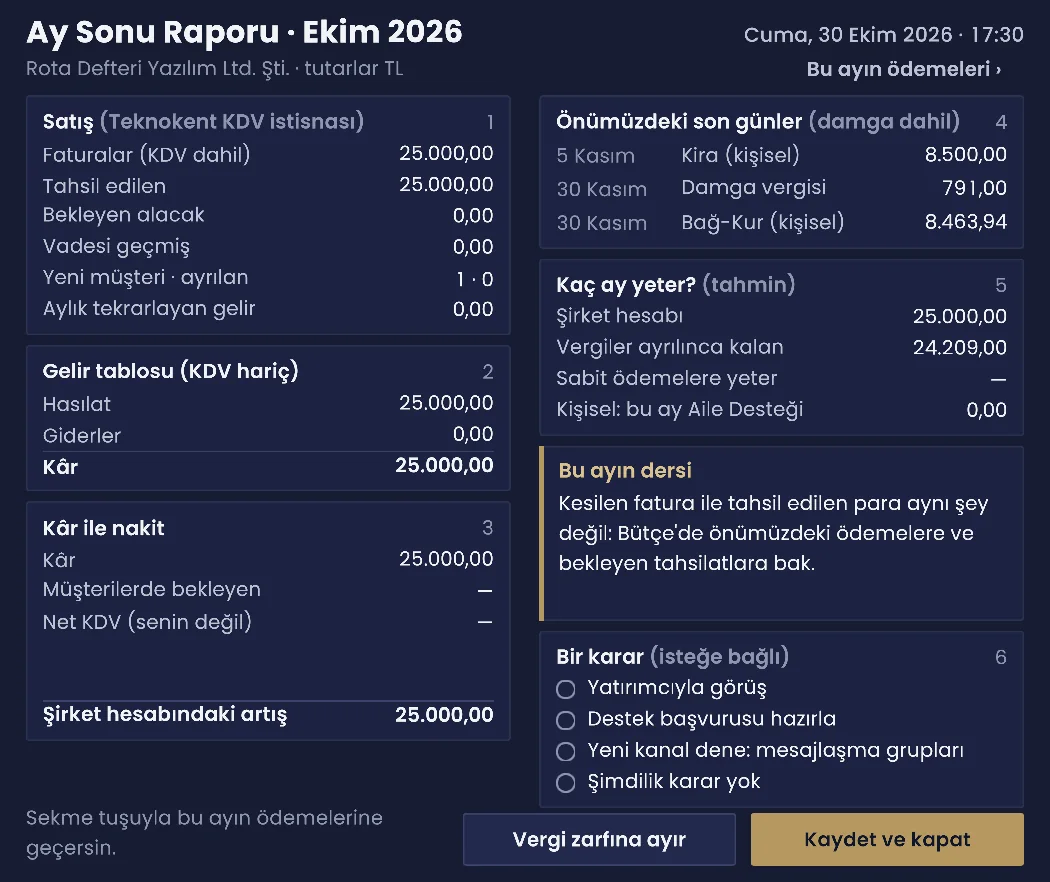
| Running the business | Time is limited, so the week has to be planned. An invoice that has been sent is not money that has been collected. Collected VAT is money held for the state. The company's money is separate from the founder's money. |
What the teacher can review
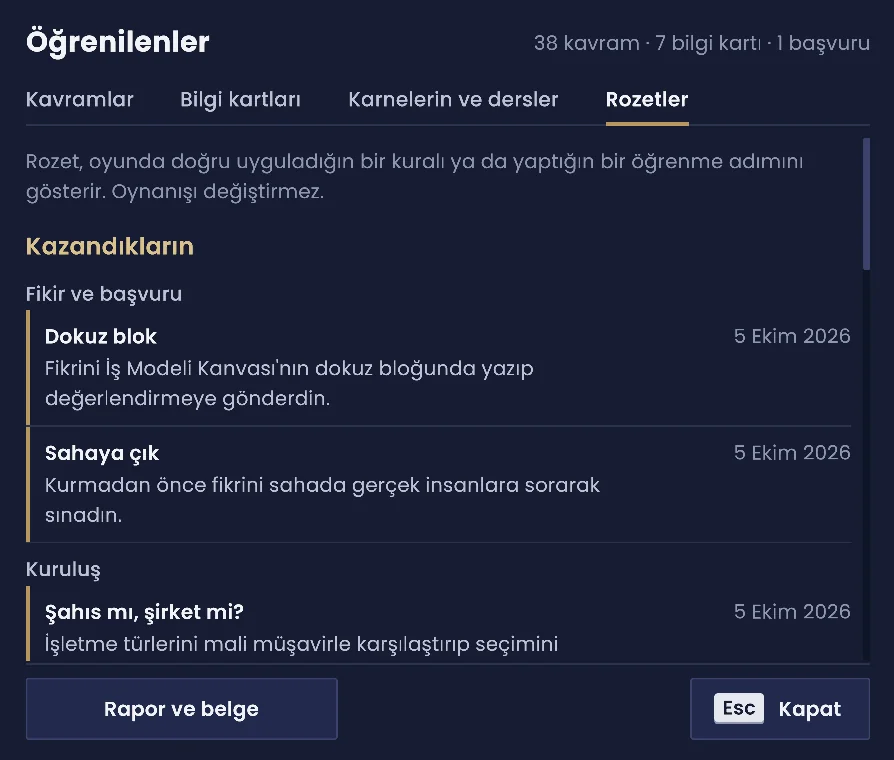
The game has no remote monitoring. A student's work can be reviewed through the Learning Report the student provides to you and through two sections on the student's screen: the Certificate of Participation and “What you have learned, and badges”.
Learning Report. The game prepares a report as a single file. It covers the student's progress, the technology park application, the decisions made, a summary of the business, and what was learned. The file is saved to the Documents folder on the student's computer.
Certificate of Participation. A student who has received the pre-assessment report can prepare a printable, one-page certificate. It is not an official qualification.
What you have learned, and badges. The terms, information cards, pre-assessment reports, and lessons a student has encountered are collected in one place in the game. Each badge is tied to a learning goal and shows that the goal was reached. For example, a student who writes an idea in nine blocks and submits it earns a badge. Badges carry no points and no rewards.
Classroom use. The game cannot be completed in one sitting. Progress is saved automatically. A student who does not finish within one class period resumes from the last save in the next class.
How the pre-assessment report is prepared is explained on the Assessment engine page.
Installation and computers
The game is developed for desktop and laptop computers running Windows. There is no phone or tablet version. The game works offline, including the assessment.
The recommended computer is as follows.
- Windows 10 or Windows 11, 64-bit
- 8 GB of memory
- A graphics card that supports DirectX 12. Integrated graphics are sufficient.
On a weak graphics card the game lowers the graphics level automatically. The graphics quality and the interface size (normal, large, or largest) can be changed in “Ayarlar” (Settings).
Installation on multiple computers. The installer does not require administrator rights. For installation on more than one computer, the installation package includes the “Kurum Kurulum Kılavuzu” (Institution Setup Guide). Trying the game on one computer before installing it on the rest is recommended.
Activation. The game is activated once on each computer. Institutions have two options. The first is the institution license file. Your IT administrator installs the file by following the steps in the guide, and while the file is in place the activation screen does not appear. The second is the institution key. The key is entered in the “Etkinleştirme kodu ya da kurum anahtarı” (Activation code or institution key) box on the activation screen.
License. The license is valid throughout the Early Access period. The Seed Up Gate Team sends a new license before it expires, and the game does not need to be reinstalled. The date and time on the computers must be correct.
The full installation steps and system requirements are on the Early Access page.
Privacy
The character's name, the ideas a student writes, and the saved games are stored only on the student's computer. The assessment also runs on that computer, and nothing the student writes is sent anywhere.
The game engine that the game is built on may send anonymous technical information, such as crash data. The game checks a small version file at update.seedupgate.com at most once a day, from the main menu, and sends no personal information. The check can be turned off in “Ayarlar” (Settings) with “Yeni sürümü denetle” (Check for new version).
Anything entered in the name and school fields of the Learning Report is added only to the report file and is not stored in the game.
Details are on the Privacy page.
School and institution application
Applications may be sent to info@seedupgate.com. Applications are answered within two business days. Including the following in the email helps the team complete your application in the first reply:
- The name of your school or institution
- The number of computers the game will be installed on
- The age group of the students